
Sections
Scroll story
A pinned panel that moves through two to four beats as the shopper scrolls.
Scroll story pins a stage on screen and moves through two to four beats as the shopper scrolls. Each Beat block has its own heading and text. The visual can be:
- Product shots: a cut-out product image per beat that crossfades and scales, with ingredient chips around it.
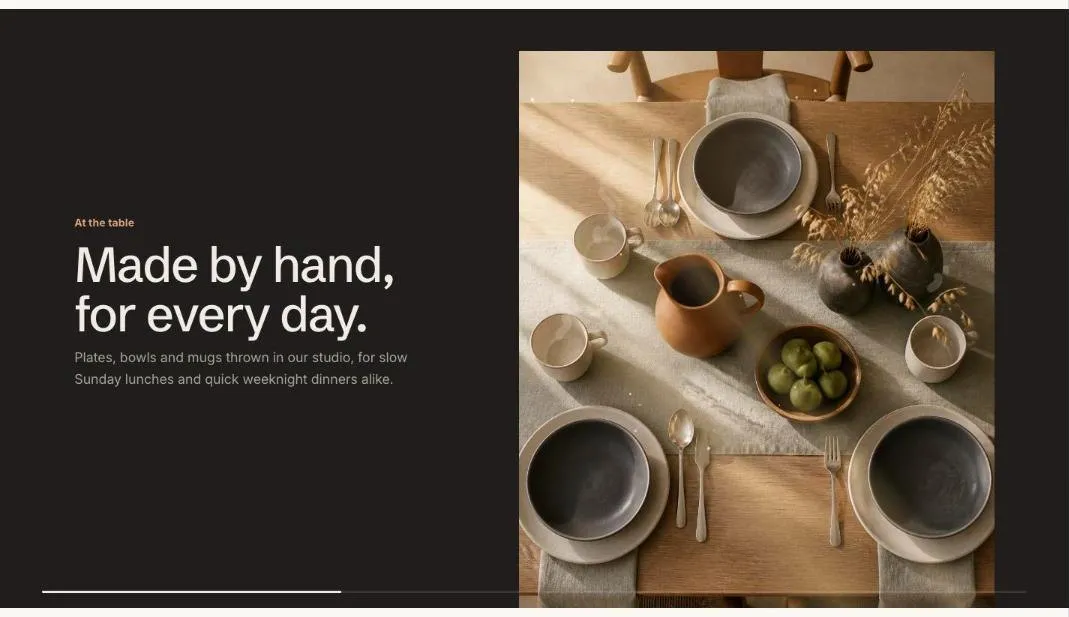
- Images: one full image per beat behind the text.
- Illustration: the built-in bottle drawing, which turns, fills and shows its ingredients.
- Lottie: an animation that plays as the shopper scrolls, from a Lottie JSON file.
Shoppers who prefer reduced motion, or whose browser has scripts turned off, see the beats stacked one after another.
Add the section
Section titled “Add the section”- Open Online Store > Themes > Customize and go to the home page (or any template).
- Click Add section and choose Scroll story.
- Fill in the content, then click Save.
Use a Lottie animation
Section titled “Use a Lottie animation”Upload your Lottie .json file in Content > Files, copy its link and paste it into Lottie file link. Choose Playback to tie the animation to scrolling or let it loop, and add a still image for shoppers who prefer reduced motion. See Scroll story with Lottie.
Expand while pinned
Section titled “Expand while pinned”Expand to full width while pinned grows the panel from the page width to the edges of the screen as it pins. Give the stage a different color scheme from the section, or the growth won’t show.
Section settings
Section titled “Section settings”| Setting | Type | What it does |
|---|---|---|
| Visual | Choice | Product shot per beat / Lottie animation / Bottle illustration / One image per beat. |
| Expand to full width while pinned | On or off | The panel grows to the edges of the screen as it pins, and shrinks back as it leaves. Give the stage a different color scheme from the section so the growth shows. |
| Scroll length per beat | Slider | 40 to 200%. How far shoppers scroll for each beat, as a share of the screen height. |
| Lottie animation | ||
| Lottie file link | Text | Upload a Lottie .json file in Content > Files, copy its link and paste it here. Keep it under 500 KB and without expressions. |
| Playback | Choice | Follow scrolling / Loop while on screen. |
| Still image | Image | Shown while the animation loads and when it can’t play. |
| Animation description | Text | Read by screen readers. Leave empty if the animation is decorative. |
| Ingredients | ||
| Ingredient 1 | Text | |
| Ingredient image | Image | |
| Ingredient 2 | Text | |
| Ingredient image | Image | |
| Ingredient 3 | Text | |
| Ingredient image | Image | |
| Bottle illustration | ||
| Label brand | Text | Defaults to the store name. |
| Label product name | Text | |
| Label size | Text | |
| Liquid color | Color | |
| Illustration description | Text | Read by screen readers. Defaults to the product name. |
| Colors | ||
| Color scheme | Color scheme | One of the schemes from Theme settings > Colors. |
| Stage color scheme | Color scheme |
Blocks
Section titled “Blocks”You can add up to 4 blocks.
| Setting | Type | What it does |
|---|---|---|
| Image | Image | Product shot: use a cut-out with a transparent background, about 1400px tall. Beats without an image keep the previous shot. One image per beat: fills the stage behind the text. |
| Small heading | Text | A short line above the heading, such as a category or a promise. |
| Heading | Text | Leave empty to hide it. |
| Text | Rich text | Supporting copy under the heading. |
| Button label | Text | Leave empty to hide the button. |
| Button link | Link | A page, product, collection or web address. |