
Product page
Product page overview
How the product template is built and what you can change.
The product page is built from the Product information section: the image gallery on one side and a column of blocks on the other. Below it you can add any section, such as product recommendations, recently viewed, a comparison table or an FAQ.
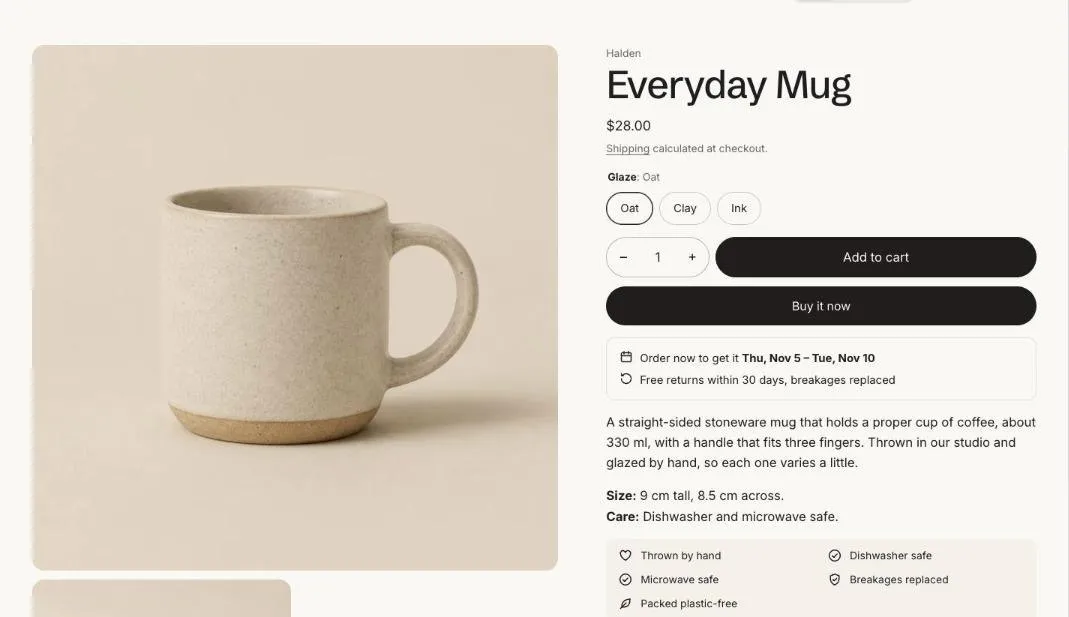
Edit the product page
Section titled “Edit the product page”- Open the theme editor and choose Products > Default product in the template picker.
- Select Product information to change the gallery and page settings.
- Add, remove and reorder blocks in the column on the right. See Product blocks.
Section settings
Section titled “Section settings”| Setting | Type | What it does |
|---|---|---|
| Color scheme | Color scheme | One of the schemes from Theme settings > Colors. |
| Sticky add to cart | On or off | On phones, a bar at the bottom of the screen once the add to cart button scrolls out of view. |
| Also show on larger screens | On or off | A slim bar under the header once shoppers scroll past the product details. |
| Gallery | ||
| Desktop gallery | Choice | Grid / One image with thumbnails. |
| Mobile gallery | Choice | Swipe with an image count / One image with thumbnails. |
| Image zoom | On or off | Pressing a product image opens it full screen, where it can be zoomed. |
| Accent color metafield | Text | Key of a product color metafield, such as custom.accent. Tints the image gallery and fills the taste scale, so each product can carry its own color. |
Gallery
Section titled “Gallery”On larger screens choose Grid, which shows every image, or One image with thumbnails. On phones choose a swipeable gallery with an image count, or one image with thumbnails. Images, videos and 3D models all show in the gallery, and Image zoom opens a full-screen viewer.
When a shopper picks a variant that has its own image, the gallery jumps to it.
Sticky add to cart
Section titled “Sticky add to cart”Sticky add to cart shows a slim bar with the price and add button once the main button scrolls out of view. It shows on phones, and on larger screens too if you turn on Also show on larger screens.