
Sections
Feature cards
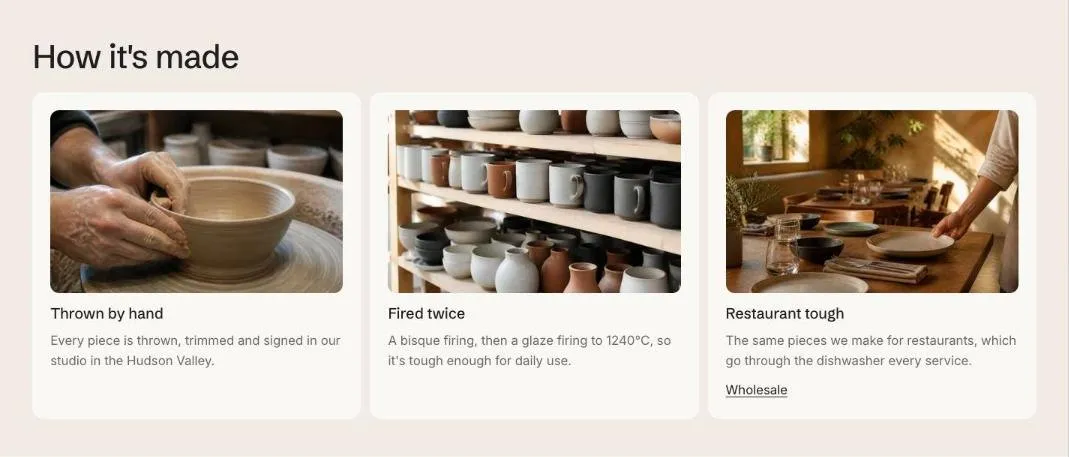
Cards with an image, heading and text, such as ingredients or reasons to buy.
Feature cards show an image, heading and text in each card, for key ingredients, product specs or reasons to buy.
Add the section
Section titled “Add the section”- Open Online Store > Themes > Customize and go to any page.
- Click Add section and choose Feature cards.
- Fill in the content, then click Save.
Section settings
Section titled “Section settings”| Setting | Type | What it does |
|---|---|---|
| Heading | Text | Leave empty to hide it. |
| Text | Rich text | Supporting copy under the heading. |
| Cards per row on desktop | Slider | 2 to 4. |
| Show images | On or off | |
| Show to | Choice | Everyone / Everyone except wholesale customers / Wholesale customers only. Wholesale customers are shoppers signed in to a B2B company. The section always shows in the theme editor. |
| Color scheme | Color scheme | One of the schemes from Theme settings > Colors. |
| Card color scheme | Color scheme | The scheme used inside the cards, so they can stand out from the section background. |
Blocks
Section titled “Blocks”You can add up to 8 blocks.
| Setting | Type | What it does |
|---|---|---|
| Image | Image | Upload an image or pick one from your files. |
| Heading | Text | Leave empty to hide it. |
| Text | Rich text | Supporting copy under the heading. |
| Link label | Text | |
| Link | Link | A page, product, collection or web address. |