
Sections
Before and after
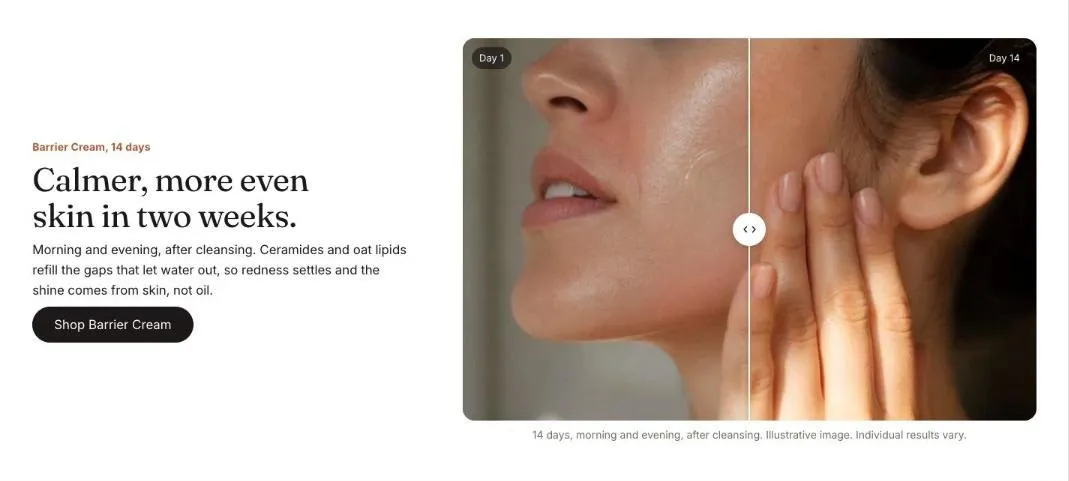
Two images on top of each other with a handle to wipe between them.
Before and after stacks two images with a handle to wipe between them. Shoppers can drag, tap or use the arrow keys, and screen readers announce the position. Each Comparison block is one pair of images.
Add the section
Section titled “Add the section”- Open Online Store > Themes > Customize and go to any page.
- Click Add section and choose Before and after.
- Fill in the content, then click Save.
Section settings
Section titled “Section settings”| Setting | Type | What it does |
|---|---|---|
| Small heading | Text | A short line above the heading, such as a category or a promise. |
| Heading | Text | Leave empty to hide it. |
| Text | Rich text | Supporting copy under the heading. |
| Button label | Text | Leave empty to hide the button. |
| Button link | Link | A page, product, collection or web address. |
| Study details | Text | Who took part, for how long and how it was measured, such as “32 people, 14 days, measured by a dermatologist”. Shown under the first image, before its caption. |
| Layout | Choice | Text above / Text beside. |
| Color scheme | Color scheme | One of the schemes from Theme settings > Colors. |
Blocks
Section titled “Blocks”You can add up to 4 blocks.
Comparison
Section titled “Comparison”| Setting | Type | What it does |
|---|---|---|
| Before image | Image | |
| Before label | Text | |
| After image | Image | Use two images of the same size and framing. |
| After label | Text | |
| Starting position | Slider | 10 to 90%. |
| Caption | Text |