
Sections
Shoppable image
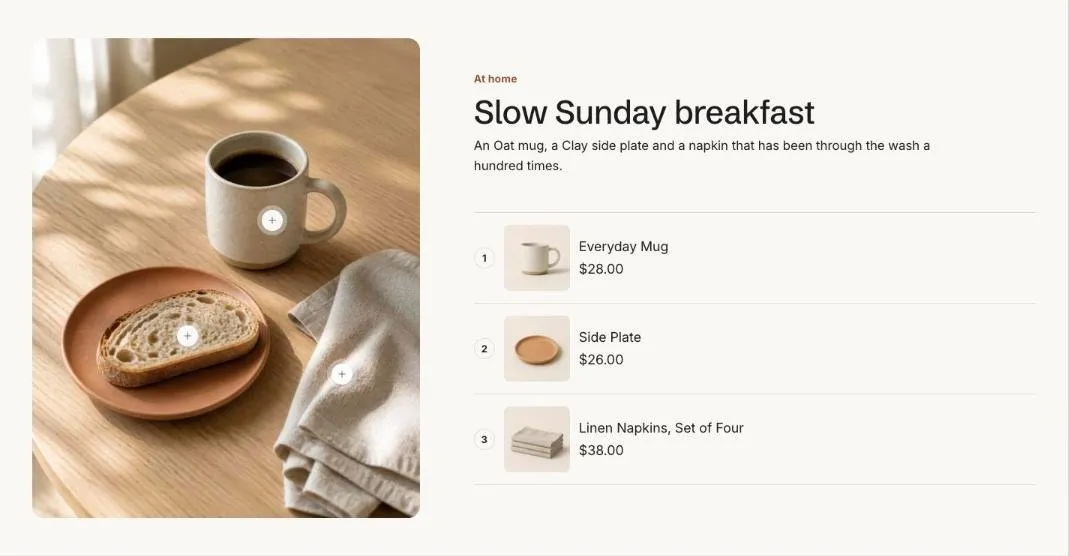
A lifestyle image with hotspots that open product cards.
Shoppable image places hotspots on a lifestyle image. Each hotspot opens a small card with the product’s image, price and an add button. On larger screens the card opens beside its dot; on phones it sits across the bottom of the image.
Add the section
Section titled “Add the section”- Open Online Store > Themes > Customize and go to the home page (or any template).
- Click Add section and choose Shoppable image.
- Fill in the content, then click Save.
Place the hotspots
Section titled “Place the hotspots”Each Hotspot block has horizontal and vertical position sliders, in percent of the image width and height. Select the block in the editor and move the sliders until the dot sits on the product. If you use a phone image, keep the same framing so the positions still match.
Section settings
Section titled “Section settings”| Setting | Type | What it does |
|---|---|---|
| Image | Image | Upload an image or pick one from your files. |
| Phone image | Image | Optional. Hotspots keep the same positions, so keep the products in the same place in the frame. |
| Small heading | Text | A short line above the heading, such as a category or a promise. |
| Heading | Text | Leave empty to hide it. |
| Text | Rich text | Supporting copy under the heading. |
| Layout | Choice | Image / Image with product list. |
| Hotspot style | Choice | Dot / Plus / Number. |
| Show add to cart | On or off | Products with options open a quick picker. |
| Full width | On or off | |
| Color scheme | Color scheme | One of the schemes from Theme settings > Colors. |
Blocks
Section titled “Blocks”You can add up to 8 blocks.
Hotspot
Section titled “Hotspot”| Setting | Type | What it does |
|---|---|---|
| Product | Product | |
| Position from left | Slider | 0 to 100%. |
| Position from top | Slider | 0 to 100%. |
| Label | Text | Used when no product is chosen. |