
Collections and search
Collection page
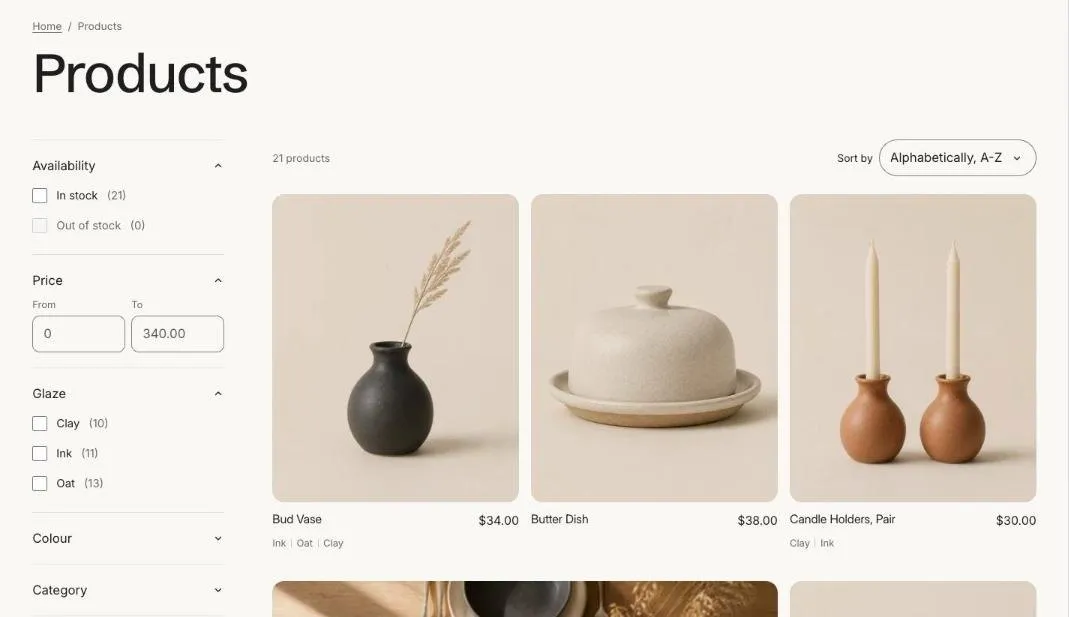
The product grid, filters, sorting and promo tiles on collection pages.
The collection page shows the collection’s title, description and image, then the product grid with filters and sorting. Edit it by choosing Collections > Default collection in the template picker.
Promo tiles
Section titled “Promo tiles”Add Promo tile blocks to place an image or message card inside the grid, such as a sale banner or a link to a guide. Choose the position in the grid for each tile.
Filters
Section titled “Filters”Filters come from the Search and Discovery app. See Collection filters.
Section settings
Section titled “Section settings”| Setting | Type | What it does |
|---|---|---|
| Color scheme | Color scheme | One of the schemes from Theme settings > Colors. |
| Collection header | ||
| Show collection description | On or off | |
| Show collection image | On or off | |
| Product grid | ||
| Products per page | Slider | 8 to 48. |
| Pagination | Choice | Load more button / Infinite scroll / Numbered pages. |
| Products per row on desktop | Slider | 2 to 5. |
| Show second image on hover | On or off | Shows the product’s second image when a shopper hovers over the card. |
| Show vendor | On or off | Shows the brand above the product title. |
| Filtering and sorting | ||
| Enable filtering | On or off | Set up filters in the Search and Discovery app. |
| Enable sorting | On or off |
Blocks
Section titled “Blocks”You can add up to 4 blocks.
Promo tile
Section titled “Promo tile”| Setting | Type | What it does |
|---|---|---|
| Show after product | Slider | 1 to 24. |
| Width | Choice | One product / Two products. |
| Image | Image | Upload an image or pick one from your files. |
| Small heading | Text | A short line above the heading, such as a category or a promise. |
| Heading | Text | Leave empty to hide it. |
| Text | Text | Supporting copy under the heading. |
| Button label | Text | Leave empty to hide the button. |
| Button link | Link | A page, product, collection or web address. |
| Color scheme | Color scheme | One of the schemes from Theme settings > Colors. |